XNPC
Install and configure XNPC, the standalone FiveM script that places, dresses and animates static NPCs from an in-game menu.
This guide covers
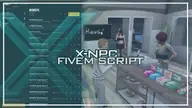
XNPC lets an admin place static NPCs from an in-game menu: pick a ped model, give it an animation, aim at the spot and confirm. Every change is written to JSON files at once and reaches all players without a restart. This guide takes you from the download to the first NPC. The same information ships inside the resource as README.md.
Requirements
| What | Notes |
|---|---|
| FiveM server on GTA V | A current FXServer artifact, with game build 3095 or newer |
| Server license key | It must belong to the Cfx.re account that owns XNPC. The resource is protected by the Cfx.re asset escrow and only starts for that account |
Write access to xnpc/data |
The server process saves categories, NPCs and animations there |
| Framework | None. XNPC is standalone and runs the same on ESX, QBCore, Qbox or no framework at all |
| Database | None |
| Appearance editor | Optional. illenium-appearance, fivem-appearance or esx_skin, to dress multiplayer peds with the editor you already use. Without them the built-in editor does the job |
Node.js is not needed: the interface ships already built.
Installation
-
Download XNPC from your Cfx.re Portal, under Granted Assets, and unzip it.
-
Copy the folder
xnpcinto yourresourcesdirectory. If you upload by FTP, use binary transfer mode: the escrow check fails on protected files that were altered on the way. -
Edit
server.cfg.sv_enforceGameBuild 3095 # or a newer build ensure xnpc add_ace group.admin xnpc.admin allowTo give the menu to a single player instead of a group, use their identifier:
add_ace identifier.license:xxxxxxxxxxxxxxxx xnpc.admin allow -
Start the server and read the console. A healthy first start prints this line:
[xnpc] [info] 0 categories, 0 NPCs and 373 animations loadedOn first start
data/categories.json,data/npcs.jsonanddata/animations.jsonappear in the resource folder. An[error]line says what is wrong: the most common ones are listed under Troubleshooting. -
In game, type
/xnpc. The menu opens for whoever has thexnpc.adminpermission.
First steps
The interface is in English.
- Create a category. In the NPCs tab, press New category and give it a name: a zone, a venue, anything you like. The id is made from the name and you can type your own before creating it.
- Add an NPC. Select the category and press Add NPC. A preview ped appears in the world and a camera frames it. Drag in the empty area to orbit, scroll to zoom.
- Choose the ped. Pick a GTA model by group, type the name of an add-on model, or choose the multiplayer male or female and press Customize look. View models opens a gallery with a photo and the name of every model: hovering one shows it live in the world, a click picks it.
- Choose the animation. Pick a group, then an animation. The arrows step through the list so you can compare quickly.
- Place it. Place in world lets you walk around and aim. Use my position drops the NPC where you stand. The Fine tuning buttons then move it by 1, 5 or 25 cm.
- Press Save NPC. Every player sees the NPC at once.
Keys while placing in the world:
| Key | Action |
|---|---|
| E | Confirm the position |
| Backspace | Cancel |
| Mouse wheel | Turn the ped, 5° per step |
| Shift + mouse wheel | Raise or lower it, 2 cm per step |
Managing NPCs
In the list of a category, the pin button teleports you right in front of the NPC, facing it, and the menu stays open. The eye button disables an NPC: it leaves the world for every player, stays in the list marked Disabled, and comes back with another click. An NPC belongs to one category and you can move it to another from its editor. Deleting a category deletes its NPCs too, after a confirmation that tells you how many.
Animations
The Animations tab holds 373 preinstalled scenarios and animation clips, in 16 groups. Play any of them on a copy of your ped, add your own (a scenario name, or a dictionary and a clip) and press Test it before adding. The ones marked “(men only)” are GTA scenarios with no female version: a female ped stands still instead of playing them.
An animation in use by an NPC cannot be removed until those NPCs get another one. Restore removed defaults brings back the preinstalled ones you deleted.
Configuration
The Lua code is encrypted by the asset escrow. Two files are left open, and every .json file is plain text.
| File | What is in it |
|---|---|
config.lua |
Command, permission, spawn distances, appearance editor, model photos |
integrations/appearance.lua |
The bridge to external appearance editors, in case yours needs a different call |
catalog/peds.json |
Ped models offered in the menu, by group |
catalog/animations.json |
Preinstalled animations, the source for Restore removed defaults |
data/*.json |
Your categories, NPCs and animations |
config.lua
| Setting | Default | What it does |
|---|---|---|
Admin.command |
'xnpc' |
Chat command that opens the menu |
Admin.key |
'' |
Default key for the binding. Empty means no key |
Admin.ace |
'xnpc.admin' |
Permission required for everything in the menu |
Spawn.distance |
60.0 |
Metres at which an NPC appears |
Spawn.despawn |
75.0 |
Metres at which it is removed |
Spawn.scanMs |
1000 |
How often the client checks for nearby NPCs, in milliseconds |
Appearance.editor |
'auto' |
Which editor dresses multiplayer peds, see below |
Peds.photoUrl |
'https://docs.fivem.net/peds/%s.webp' |
Address of the photos shown by View models, with %s where the model name goes |
Every player can bind a key to the menu in the GTA settings, under Key Bindings, FiveM, on the entry “Open the XNPC menu”.
The default Peds.photoUrl points to the FiveM documentation, which has a photo for most models. The newest ones show “No photo” and you see them live by hovering. Point it to your own HTTPS host to add photos for add-on peds, or set it to '' to hide the gallery.
Appearance editor
Appearance.editor decides how a multiplayer ped is customized.
| Value | Editor used |
|---|---|
'auto' (default) |
illenium-appearance, fivem-appearance or esx_skin if one is started, otherwise the built-in editor |
'builtin' |
Always the built-in editor |
'illenium-appearance', 'fivem-appearance' or 'esx_skin' |
That resource, if it is started |
The built-in editor changes the preview ped only. Your own ped is never touched.
With an external editor you become the NPC while you edit, because those editors only work on the player. XNPC captures your full appearance before the switch and restores it afterwards, together with health and armour, also if XNPC or the editor is stopped mid-edit. Typing /xnpc while the external editor is open aborts the edit and restores you. qb-clothing is left out on purpose: it writes the skin to the database when you confirm.
Switching ped model drops the weapons you hold in hand. This is GTA behaviour: it only happens with an external editor and only if your own model is different from the one you are editing.
Data files
| File | Content |
|---|---|
data/categories.json |
Categories: id, name |
data/npcs.json |
NPCs: name, category, model, look, animation, position, disabled |
data/animations.json |
Your animation list, created from the catalog at first start |
data/*.bak |
Copy of the last good save, used if a file is damaged |
You can edit the files in data by hand, then run xnpc_reload in the server console. An NPC looks like this:
{
  "id": 1,
  "name": "Front gate guard",
  "category": "police-station",
  "model": "s_m_y_cop_01",
  "animation": "guard-standing",
  "x": 441.2,
  "y": -981.9,
  "z": 30.69,
  "h": 90.0
}
animation is the id of an entry in data/animations.json. Entries with mistakes are skipped and the original file is copied to data/<name>.rejected.json, so nothing is lost.
Limits: 200 categories, 2000 NPCs, 1000 animations. Names take up to 40 characters. A category id takes lowercase letters, digits, dashes and underscores, up to 32 characters.
Add-on peds
To offer add-on peds in the model list, add their names to a group in catalog/peds.json:
{
  "group": "My server",
  "models": ["my_addon_ped_01", "my_addon_ped_02"]
}
Models the game does not have are hidden automatically. You can also type the name of an add-on model straight into the NPC editor, without touching the catalog.
Commands
| Command | Where | What |
|---|---|---|
/xnpc |
In game, who has xnpc.admin |
Opens and closes the menu |
xnpc_reload |
Server console | Reloads the files in data and sends the new state to every player |
Every change made from the menu is logged in the server console with the id of the player who made it, for example player 3: NPC created 12.
Updating
- Stop the resource.
- Keep your
datafolder and yourconfig.lua. If you added peds tocatalog/peds.json, keep a copy of that too. - Replace everything else with the new version, then put your files back.
- Start the resource and read the console: it reports what was loaded.
Troubleshooting
In the server console
| Console says | Fix |
|---|---|
You lack the required entitlement to use xnpc |
The server license key is from a different Cfx.re account than the one that owns XNPC, or the asset was just granted: restart the server |
Failed to verify protected resource |
A protected file was changed or damaged in transfer. Upload the original package again, in binary mode if you use FTP |
the data folder is not writable: NPCs are shown, but changes made in the menu cannot be saved |
Give the server process write access to xnpc/data, then restart the resource |
data/categories.json could not be written: check that the data folder exists and is writable |
Same as above. The folder data must exist inside the resource |
data/npcs.json is not valid JSON, trying the backup copy |
A hand edit broke the file. The backup data/npcs.json.bak is loaded and your broken file is kept as data/npcs.rejected.json |
N entries of data/npcs.json were not valid and were skipped |
Some entries have a missing or wrong field. Compare data/npcs.rejected.json with the saved file, fix them and run xnpc_reload |
NPC 12 uses the unknown animation ..., it now stands idle |
The animation id is not in data/animations.json. Pick another animation from the NPC editor |
NPC 12 uses the unknown category ..., the category was created |
Only a notice: the missing category was added with the id as its name. Rename it from the menu |
catalog/animations.json is missing or is not valid JSON |
Restore the file from the original package |
In game
| Problem | Fix |
|---|---|
XNPC: you are not allowed to open this menu. |
The player lacks the xnpc.admin permission. Check the add_ace line and that the player belongs to that group |
XNPC: the server did not answer, try again. |
The server gave no reply within 8 seconds. Check that the resource is started and read the server console |
| “Not saved: the data folder of the resource is not writable.” | See the console table above |
| “This model is not in your game.” | The model name is wrong, or the resource that streams the add-on ped is not started |
| An NPC stands still instead of playing its scenario | The scenario name is wrong, or the scenario does not exist for that ped: some play only on male peds, some only on specific models. GTA gives no error, so test it from the Animations tab first |
| “In use by N NPCs. Give them another animation first.” | Change the animation of those NPCs, then remove it |
| A model in the gallery shows “No photo” | The FiveM documentation has no photo for it yet. Hover the model to see it live |
| NPCs appear too late or too early | Change Spawn.distance and Spawn.despawn in config.lua. If despawn is not larger than distance, it is raised automatically |
For anything else, reach us on Discord.